Download the template: Dropbox
It’s a ZIP file, so open that. You can choose between a version with the PopSquare text on there, or not (NoText). Those are the different PSD files.
Programs.
Open photopea.com, which is an free online competitor of Photoshop, it’s on web and works in almost any browser.
You can download paint.net (can get it here: https://www.getpaint.net/ and also use it, the lay-out is a bit different.
Starting
It looks like this, there are two templates, one with text and the other without.
The template has layers:
- The image you want.
- For Text version: the Popsquare logo & text.
- If you want text, a layer to colour the Pop Sq. text.
- Transparency: the gray/white blocks are transparent and a .PNG file will show that, so that it looks nice. If there is a white background to your avatar, it will show that in any theme / dark mode. So that is not ideal.
For Photopea: You can zoom your workspace with + and - to have it easier visible.

First download the image you want as your avatar to your PC and then copy it into Photopea. Drag it or just copy and paste. Check to select ‘Transform controls’ in the top bar if it’s messy.
Check it comes as a separate layer and then drag it to top position in the layer panel. See the image above and beyond.
Right-click the image you added to make it a Clipping Mask, so that it takes the form of the PopSquare logo.
You can drag the image to align it, make it bigger or smaller, etc.


With text: Changing text colour
If you want the Pop Sq. text a different colour, right click the bottom Fill layer to open up the colour picker, and pick another color.

Saving:
Click File > Export.
Export as > choose PNG.
A new window opens with some options, just save.
It should be a good size, but check it’s around 400 pixels.
Optional: if you want to make sure to edit it later, click Save as PSD to be able to work from that point onwards in future.

Go to your Profile (click your avatar top right). Click the person Icon. Click Preferences.
Edit Profile picture. Click Custom picture > Upload.
Bonus: How to fix transparency.

See the above image? It looks good on a white background… But there are more options nowadays! There is dark mode and even other themes with other colours (or perhaps in future). So we want to make it work on any background, which is what transparency is.
Open your avatar in Photopea (or other).
Click that layer.
Click the Magic Wand (3rd icon on the left).
Click the white / background area of your avatar. It should give a broken outline over your avatar, like this:

Click delete, it deletes the white and gives the transparent background. Then Export as PNG - to keep transparency.

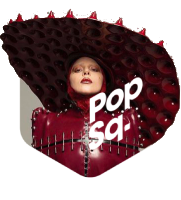
Deluxe version - Popping out
Template: Dropbox
The concept — you need 2 copies of the photo:
-
Bottom copy: clipped inside the hexagon (stays masked)
-
Top copy: only the popping out, sitting above all layers unmasked
Step by step:
-
Place the image you want in Photopea in the template.
-
Duplicate the image, so you have two identical copies
-
Bottom copy — apply the hexagon as a clipping mask (right click layer, Clipping Mask or [Ctrl+Alt+G]), so the photo is contained inside the shape
-
Top copy:sits above the hexagon layer, unclipped
-
On the top copy, select everything you want to erase that is outside the hexagon. You can use the eye in front of the layer to see how it works. You can select with the magic wand and press Del to delete parts. This is some tries and errors.
If it doesn’t work, or you have other talents, send me a DM or post your request here and everyone can make them! Or you can ask any tool to help you, such as Claude. They usually get it pretty spot on if you post a screenshot of your file and give enough context.